


Nostalgia Commander for Linux
Version 0.1.3, for 64-bit Intel and AMD processors with glibc 2.35 or later: Ubuntu 22.04, Debian 12 and anything newer. It takes 24 MB of disk.
Debian package
nostalgia-commander_0.1.3_amd64.deb
8.7 MB · .deb · Ubuntu, Debian, Linux Mint, Pop!_OS
apt installs it with everything it needs and puts Nostalgia Commander among your applications. Needs sudo.
Download .debTar archive
nostalgia-commander-0.1.3-linux-x86_64.tar.gz
10.8 MB · .tar.gz · any distribution
The same program, unpacked by you: into /usr/local for everyone, or into your home folder without sudo.
Download .tar.gzInstalling the .deb
-
Open a terminal in the folder you downloaded it to. In Files, open that folder, right-click an empty part
of it and choose Open in Terminal; or open a terminal and type
cd ~/Downloads. -
Install it with apt, and give your password when sudo asks for it:
sudo apt install ./nostalgia-commander_0.1.3_amd64.deb
The./matters: it tells apt this is a file, not the name of a package to look up. If something it needs is missing, most often WebKitGTK, apt lists it and asks whether to continue; press Enter.
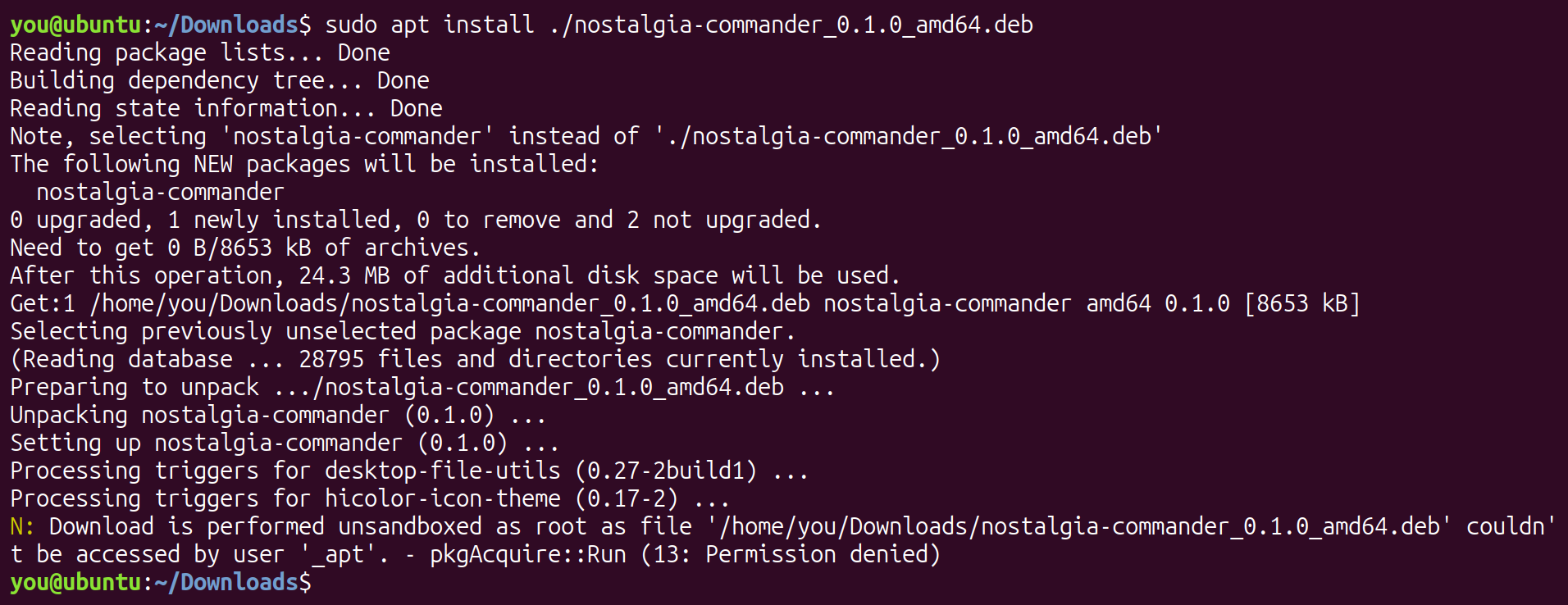
Nostalgia Commander is now among your applications, and ncomm starts it from a terminal. Use apt
rather than dpkg -i: dpkg installs the package, but nothing it depends on.
A newer .deb installs the same way, over the old one. To remove it:
sudo apt remove nostalgia-commander
Installing the tar archive
The archive holds the program and nothing it depends on, so first make sure WebKitGTK 4.1 is installed. It draws the PDF and web page previews, and the program will not start without it. GTK 3, the other thing it needs, is on any desktop that runs GNOME applications.
sudo apt install libwebkit2gtk-4.1-0      # Ubuntu, Debian, Linux Mint
sudo dnf install webkit2gtk4.1            # Fedora
sudo zypper install libwebkit2gtk-4_1-0   # openSUSE
sudo pacman -S webkit2gtk-4.1             # Arch
Then unpack it at the top of any directory laid out like /usr, with bin,
lib and share inside it: /usr itself, /usr/local, or
~/.local in your home folder. Go to that directory and unpack it there:
cd /usr/local    # or /usr, or ~/.local
sudo tar -xzf ~/Downloads/nostalgia-commander-0.1.3-linux-x86_64.tar.gz --strip-components=1
--strip-components=1 drops the archive's own nostalgia-commander-0.1.3
folder, so its bin, lib and share merge into the ones already there.
Folders that already exist are left exactly as they were, and tar makes any that are missing; only the
directory you unpack into has to be there already (mkdir -p ~/.local makes that one on an account
that has never had it). Leave out sudo for a directory you own, such as ~/.local.
The program runs from any such directory, because it finds its libraries beside itself, in
../lib/ncomm. In /usr, /usr/local and ~/.local your
desktop also finds its launcher entry and icon, and ncomm is on your path. Anywhere else, such as
/opt/nostalgia-commander, start it by its full path, /opt/nostalgia-commander/bin/ncomm.
/usr is usually the package manager's, so on Ubuntu, Debian and Linux Mint the .deb is the tidier
way to put it there.
The .deb installs the same files under /usr.
Example: for everyone, in /usr/local

which ncomm finds it on the path straight away.Example: just for you, in ~/.local

-C ~/.local unpacks there from anywhere, instead of going there first.
Ubuntu and Debian put ~/.local/bin on your path when you log in, but only if the folder exists
by then. If this is the first thing to have made it, log out and back in once, and both ncomm and
the launcher entry will find the program.
Removing it
From the same directory you unpacked it into, and with sudo if unpacking it needed that:
sudo rm -r bin/NostalgiaCommander bin/ncomm lib/ncomm share/nostalgia-commander
sudo rm share/applications/nostalgia-commander.desktop share/icons/hicolor/*/apps/nostalgia-commander.png
Your settings
However it is installed, Nostalgia Commander keeps its settings in ~/.config/NostalgiaCommander
(in $XDG_CONFIG_HOME, if you have moved that). Removing the program leaves them there for next
time; delete that folder too to remove everything.