


Nostalgia Commander for macOS
Version 0.1.3, for macOS 13.5 Ventura or later on Apple silicon. It takes 18 MB of disk.
Disk image
NostalgiaCommander-0.1.3.dmg
10.5 MB · disk image · signed and notarized
Drag it into Applications and it is installed. Nothing is put anywhere else.
Download .dmgSigned by Bishop Certainty Ltd and notarized by Apple. If macOS asks whether to open something you downloaded, that is the developer it should name.
Installing
Open the .dmg and the install takes three steps:
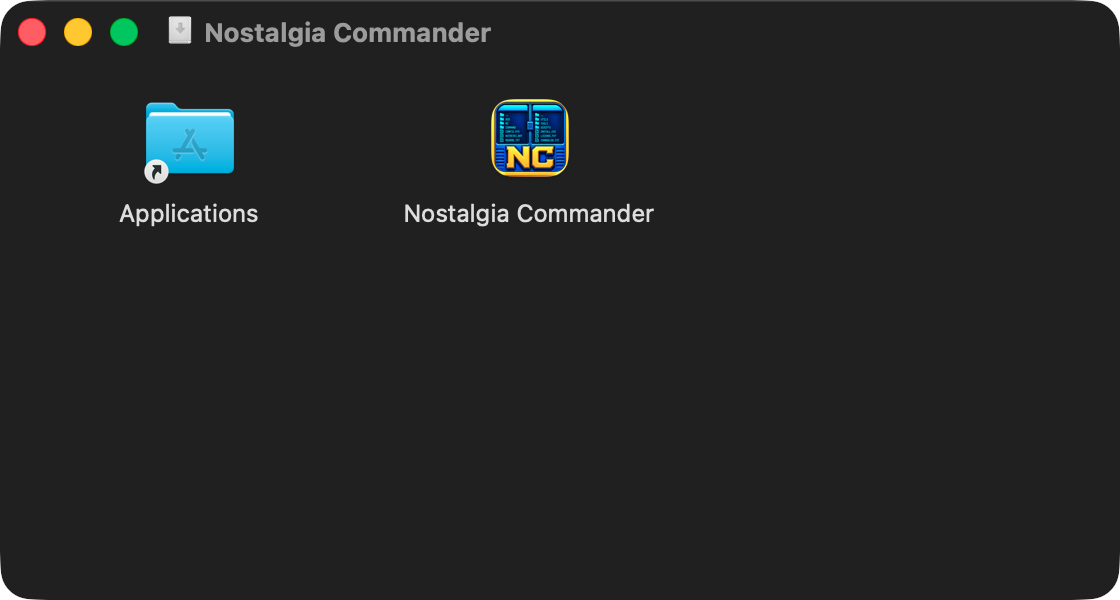
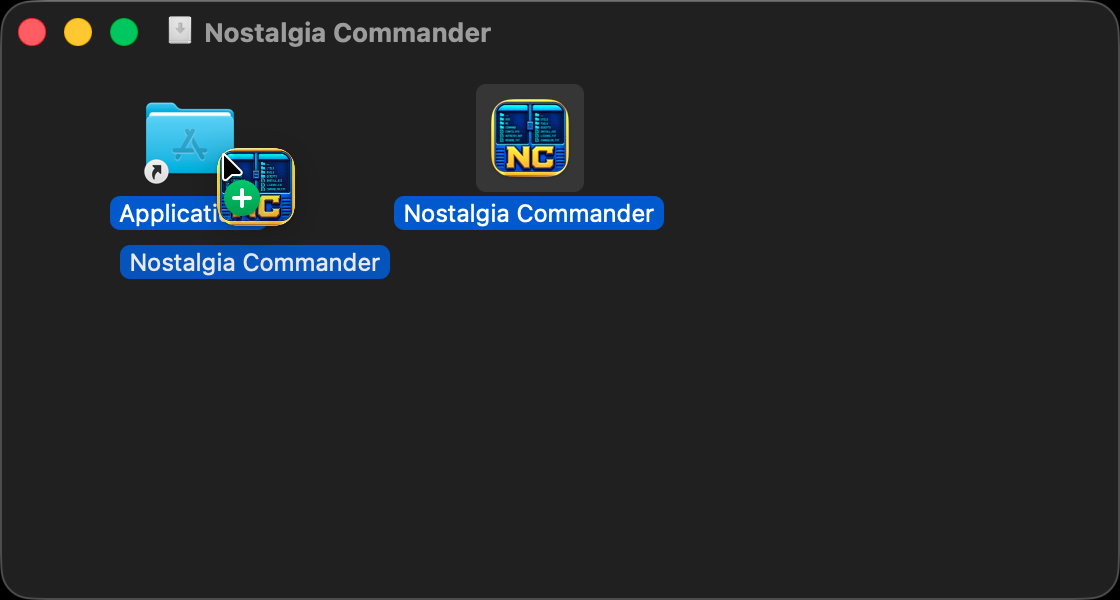

Nostalgia Commander is now in Applications and in Launchpad. The first time you open it, macOS says it was downloaded from the internet and asks whether to open it: click Open. It asks only once.
A newer version installs the same way: drag it onto Applications and choose Replace. To remove it, quit it and drag it from Applications to the Bin.
Full Disk Access
macOS keeps some of what is on your Mac behind a permission of its own. Without it, a file manager cannot list those folders, or has to ask about them one at a time.
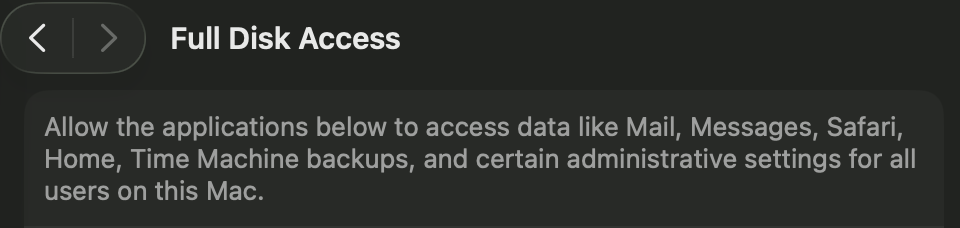
- The first time it starts, Nostalgia Commander asks for Full Disk Access, once. Open Settings… takes you straight to that page of System Settings.
- Turn on the switch beside Nostalgia Commander. macOS asks to quit and reopen it, and the permission applies from then on.
- To grant it later, go to System Settings ▸ Privacy & Security ▸ Full Disk Access. If Nostalgia Commander is not in the list, click + under it and choose it from Applications.
Your settings
Nostalgia Commander keeps its settings in ~/Library/Application Support/NostalgiaCommander. The
Library folder is hidden; in the Finder, Go ▸ Go to Folder… reaches it. Removing the program leaves the settings
there for next time; delete that folder too to remove everything.