


Nostalgia Commander for Windows
Version 0.1.3, for Windows 11 on 64-bit Intel and AMD processors. It takes 23 MB of disk.
Installer
NostalgiaCommander-0.1.3.msi
9.4 MB · Windows Installer · signed
Installs into Program Files and puts Nostalgia Commander in Start. Needs administrator rights.
Download .msiZip archive
NostalgiaCommander-0.1.3.zip
9.9 MB · unpack and run · signed program
The same program in a folder you put wherever you like. Nothing is installed and no administrator rights are needed.
Download .zipBoth are signed by Bishop Certainty Ltd. If Windows asks whether to run something you downloaded, that is the publisher it should name.
Installing
Open the .msi and the setup takes five steps:
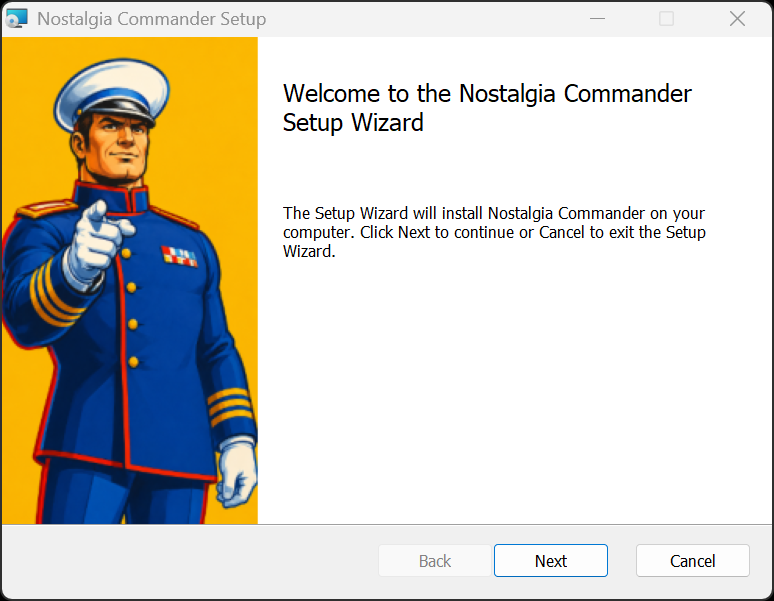
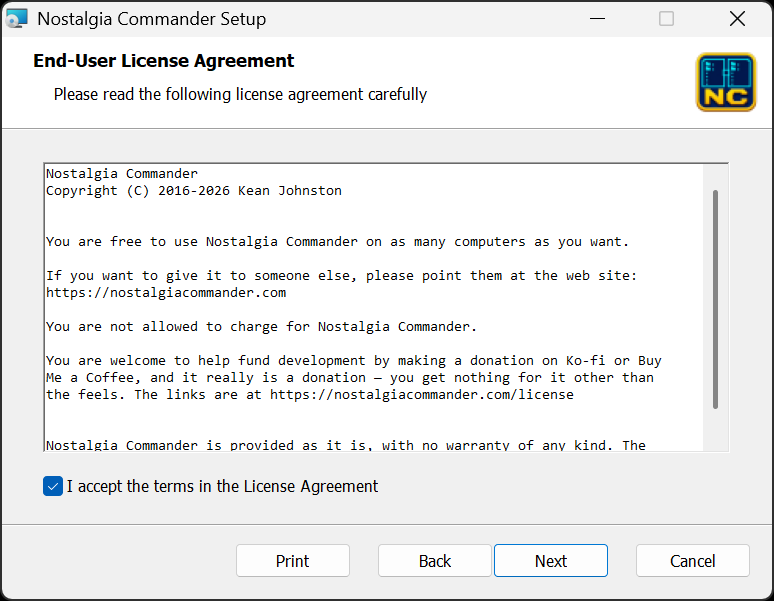
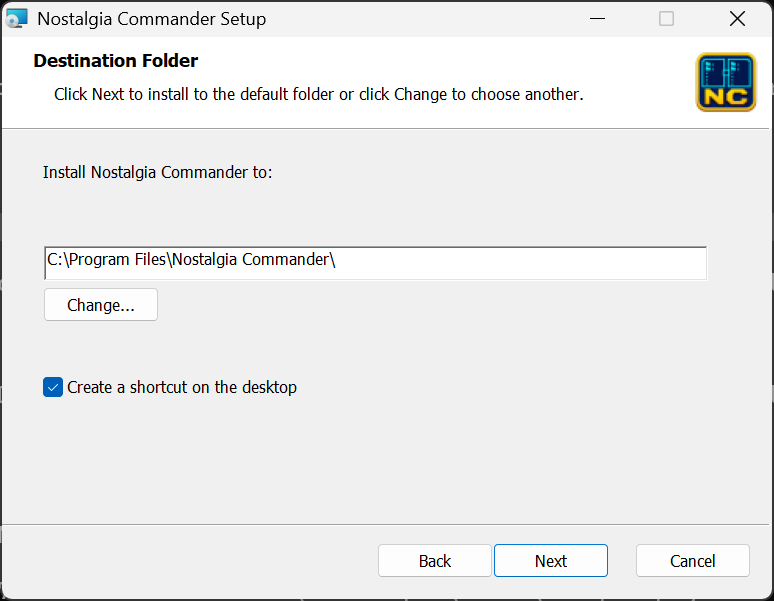
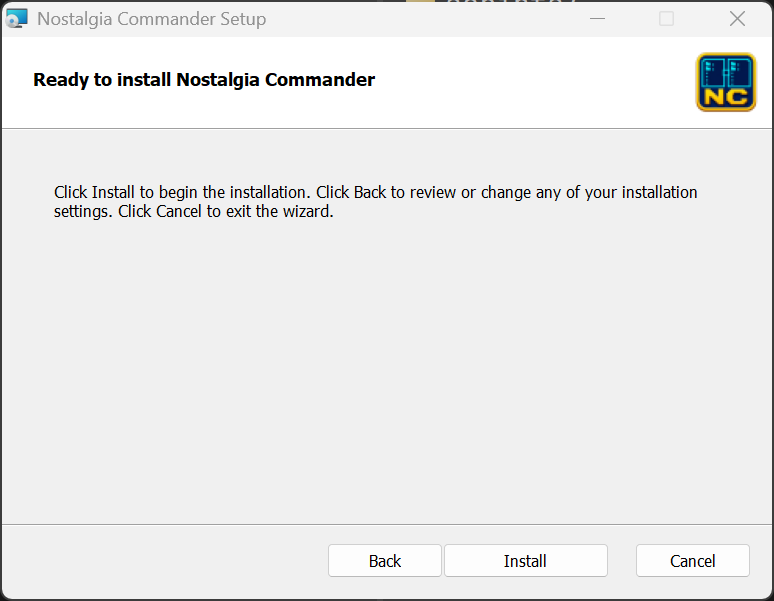
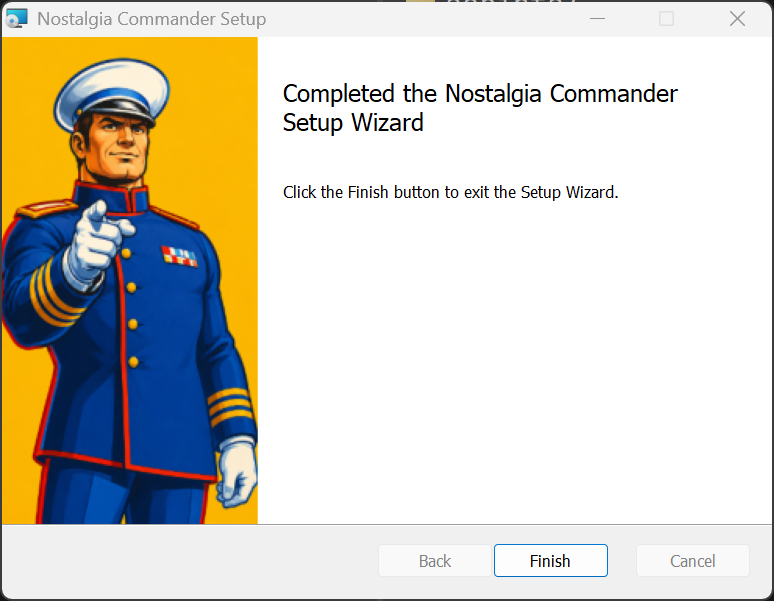
A newer installer replaces the copy already there, so there is no need to uninstall first. To remove it, use Settings ▸ Apps ▸ Installed apps.
Using the zip instead
-
In File Explorer, right-click the zip and choose Extract All….
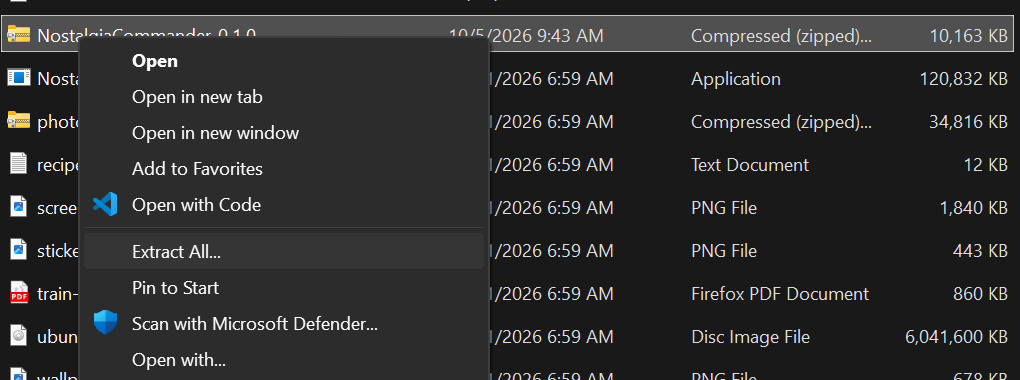
Extract All, on the zip's right-click menu. -
The zip already holds a folder named after itself, so the destination Windows suggests would put one inside
the other. Change it to the folder that should contain Nostalgia Commander, such as
C:\Tools. Program Files would need administrator rights; a folder of your own does not.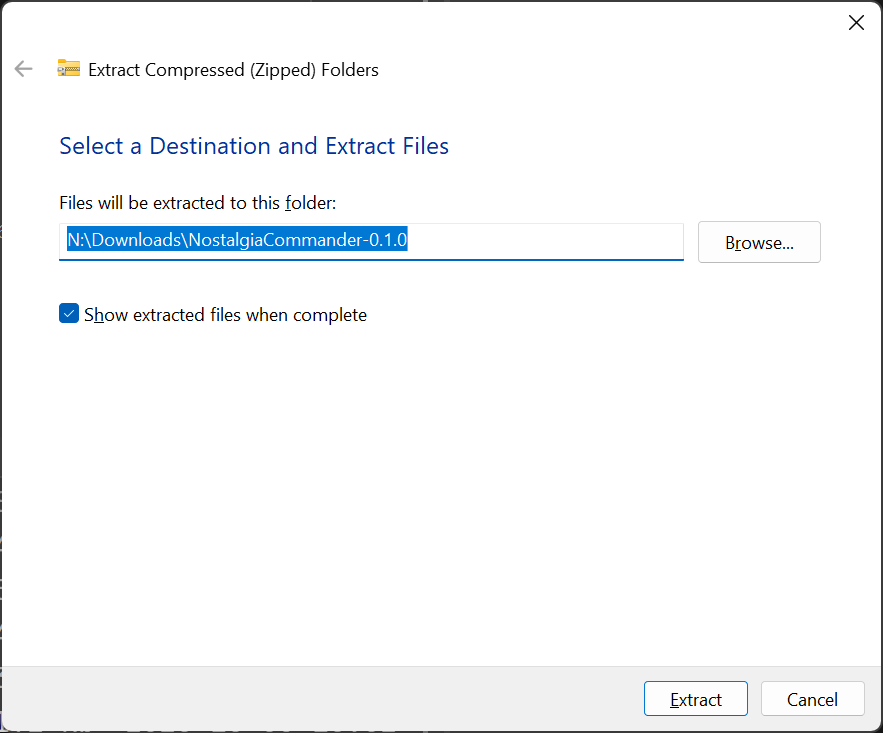
What Windows suggests: a folder named after the zip. 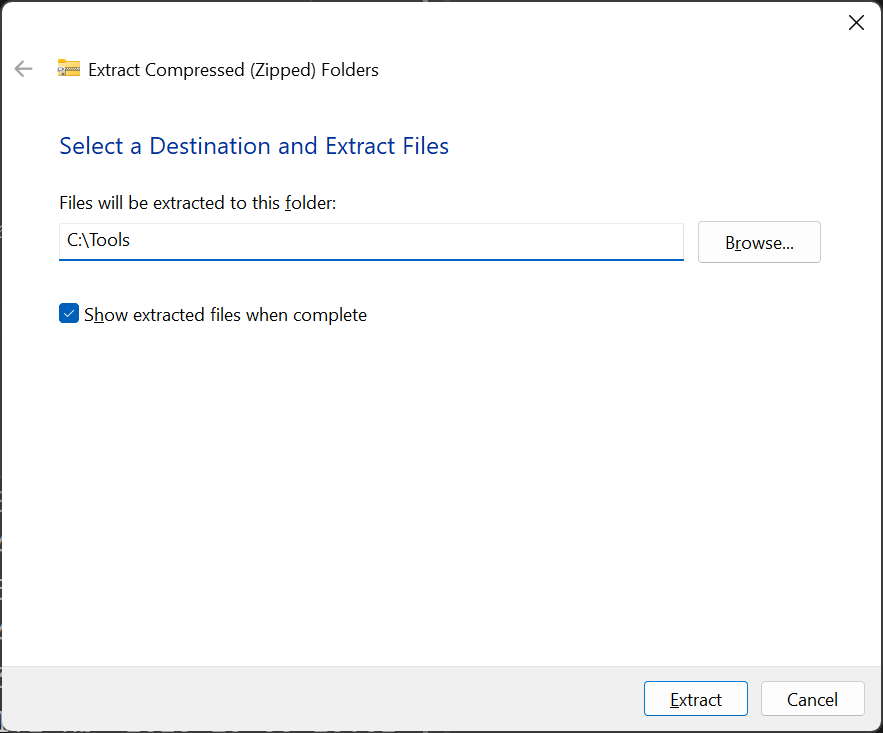
Changed to the folder that will hold it. Then Extract. -
Open
NostalgiaCommander-0.1.3\binand double-clickNostalgiaCommander.exe. Keep the three DLLs beside it: it loads them from there.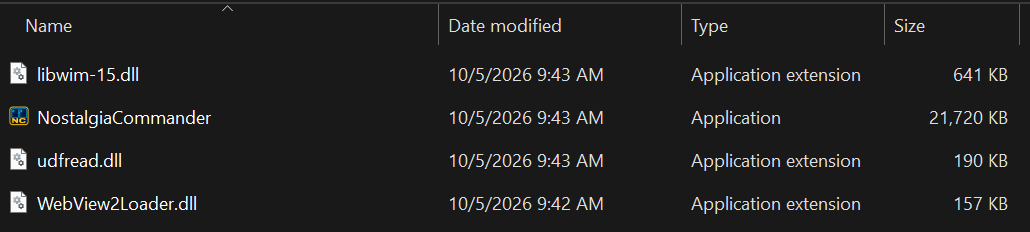
The bin folder, unpacked. - To start it from Start, right-click
NostalgiaCommander.exeand choose Pin to Start. - To remove it, quit it and delete the folder.
Your settings
Either way, Nostalgia Commander keeps its settings in %APPDATA%\NostalgiaCommander. Removing the
program leaves them there for next time; delete that folder too to remove everything.